
You upgraded to 8 GB and the same lag returned when everyone started exploring. More memory can help a memory shortage, but it cannot make every expensive tick finish faster. First identify whether players mean low frame rate, delayed packets or a slow-running world.
Measure the busy workload before changing the plan. Check tick time, CPU limits, chunk generation, plugins and memory headroom separately; then repeat one controlled test.
Name the symptom
Ask whether all players see mobs and blocks pause, or only one person has a slow client. Compare a quiet base with travel into unexplored terrain. Write down the software build, Java release, active players and the time the problem occurs.
Client FPS is rendered on the player’s device. Server tick performance and network latency are different measurements. Buying server RAM does not upgrade a player’s graphics card or their internet route.
Capture the period that actually lags
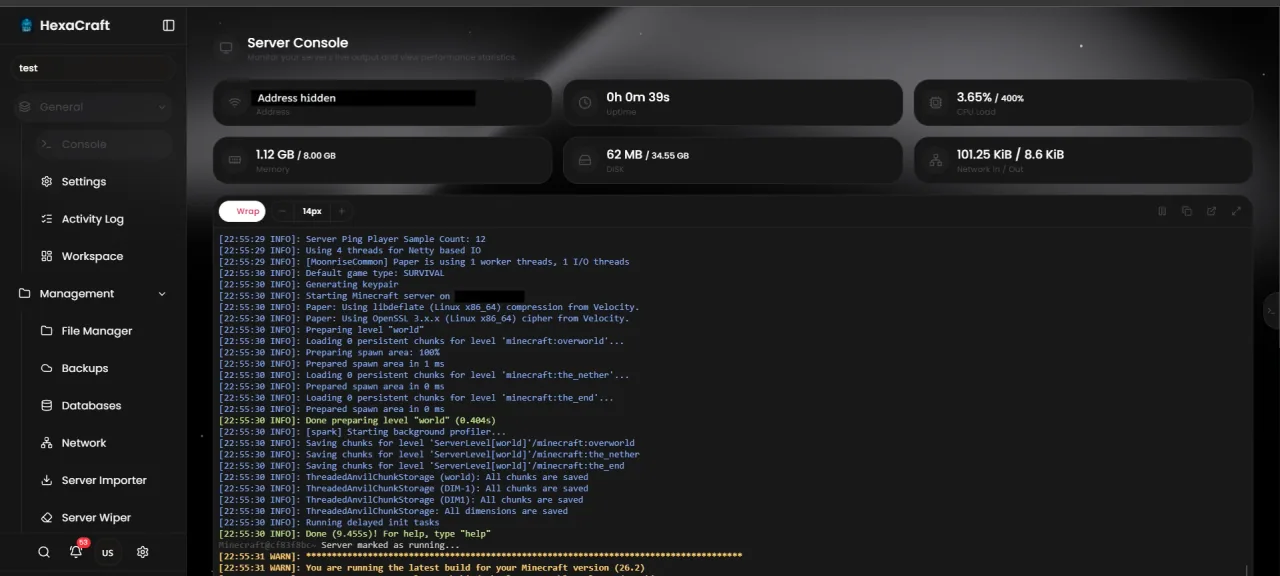
On a supported Paper build, use spark while players repeat the troublesome activity. Modern Paper includes spark; check compatibility before adding a separate plugin. For a normal sample, the following runs for five minutes. Use the current profiler documentation for your installation.
/spark profiler start --timeout 300
Keep the report with the world, settings and player count. An empty-server report is not comparable to a crowded spawn or an exploration session.
Look beyond the memory meter
Check the hosting allocation and the startup heap setting. An 8 GB container needs room for Java work outside the heap; setting Xmx equal to the complete service limit can cause termination even when a plugin reports less heap use. On a VPS, the OS and other processes need memory too.
A high memory reading by itself is not a leak. Compare garbage-collection pauses, out-of-memory messages and the period of the slowdown. Ask support to interpret a container termination rather than disabling its memory protection.
Follow the workload evidence
If new terrain is expensive, plan chunk pre-generation during maintenance. If a farm or plugin dominates the profile, test that workload on a copy before removing features. If the CPU limit is consistently reached, compare processor allocation and per-thread behavior as well as RAM.
Try a smaller view or simulation distance as a measured tradeoff, not a promise of free performance. Preserve old settings and check that farms and gameplay still behave acceptably.
Make one change and repeat the session
Keep a small log: original symptom, measurement, single change and result. Repeat the same travel or base activity with a similar group. Keep changes that improve the actual experience and revert changes that only hide the symptom.
If the measured workload exceeds the plan, choose an upgrade around the constrained resource. Minecraft hosting plans list CPU, RAM and storage separately; the cheapest larger memory tier is not automatically a faster CPU option.
Before you finish
- Separate FPS, network delay and tick lag.
- Capture a busy spark profile.
- Check heap headroom and the actual CPU limit.
- Repeat a comparable test after one change.
Common questions
Is 8 GB enough for every Minecraft server?
No. Version, plugins, mods, active chunks and player activity determine the workload. Eight GB is an allocation, not a universal player-capacity guarantee.
Will removing entities every minute fix lag?
It may destroy useful items or mobs without addressing the expensive work. Identify the cause and test a targeted change instead.
Official documentation
Commands and configuration depend on your installed software version. Check its current documentation, keep a backup and test one change at a time.
Build a setup that fits your server
Compare monthly allocations and CPU tiers, or use the plan finder for a starting estimate.
Compare Minecraft hosting plans Find a plan